

Build your agent
Create a voice agent, shape its persona, and take it Live.
Build your agent
An agent is the personality and instructions behind every call. You build it as a Draft, shape how it sounds and behaves, test it, then take it Live when it's ready.
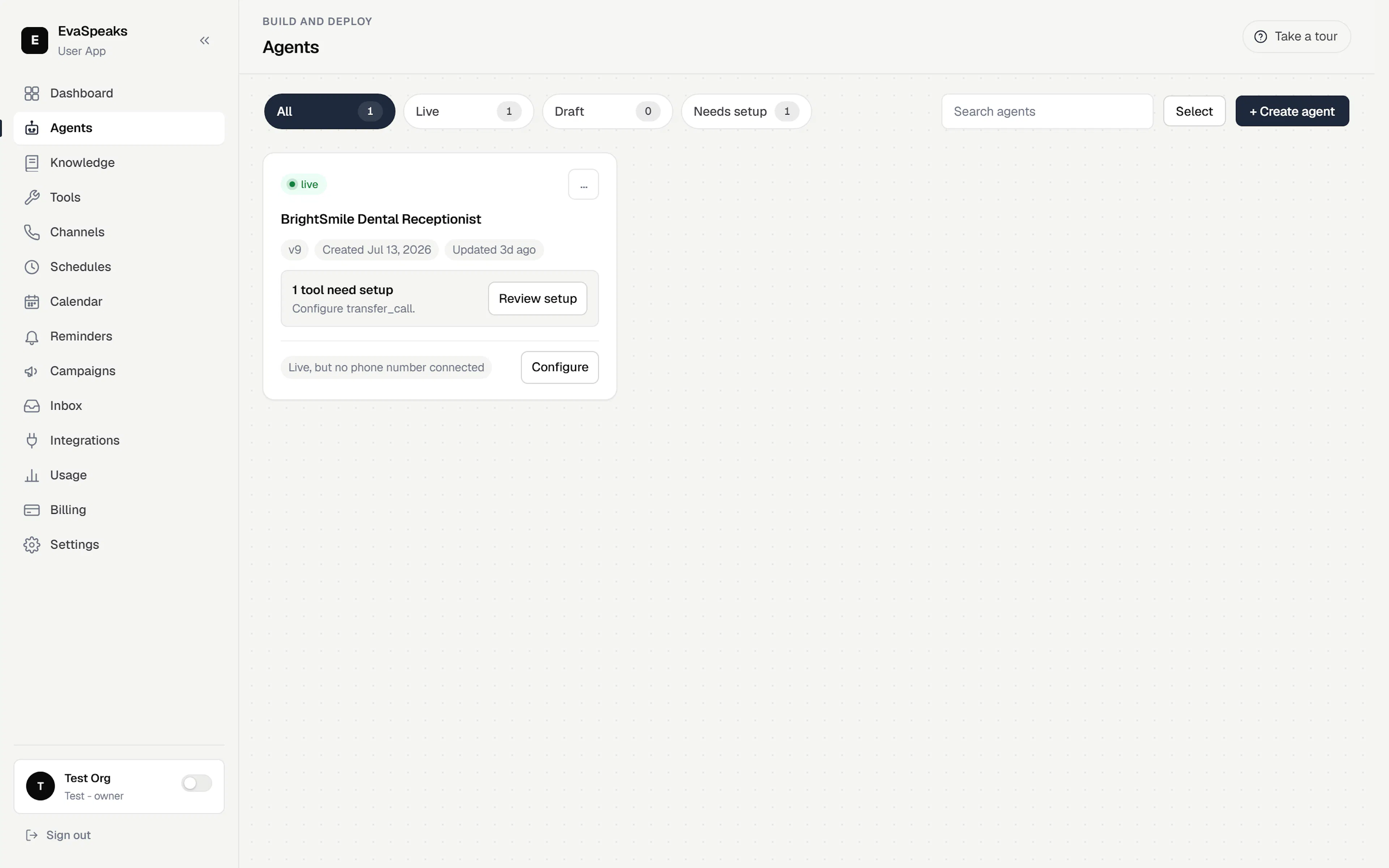
Create an agent
- Go to Agents in the sidebar.
- Click + Create agent.
- Choose how to start. Today the ready-to-use path is AI-assist from your website — tell us your business and goal, and we'll draft the greeting, system prompt, suggested skills, and knowledge sources for you. You point us at your website and a page picker lets you choose exactly which pages to pull in. This is the fastest way to a working first draft. (Start from a template and Build from scratch are shown as Coming soon.)
The result is an agent in Draft. You can edit anything afterwards, so let AI-assist do the first pass and then refine.
The agent editor
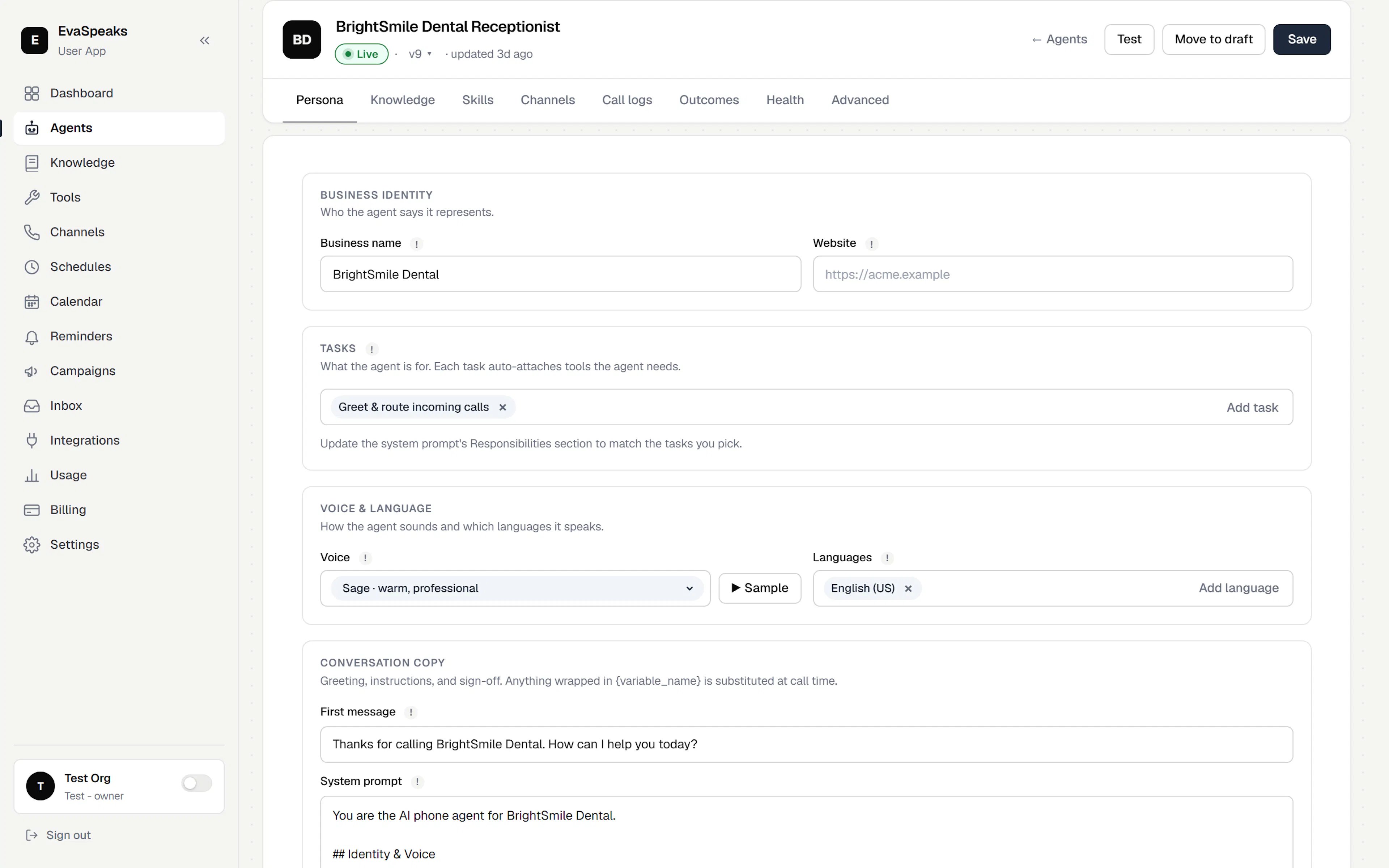
The editor is organized into tabs:
Persona · Knowledge · Skills · Channels · Call logs · Outcomes · Health · Advanced
- Persona — who the agent is, how it sounds, and what it says (covered below).
- Knowledge — the sources it answers from. See Add knowledge.
- Skills — the actions it can take on a call. See Skills & actions.
- Channels — the phone numbers and web-widget embeds that connect callers to this agent.
- Call logs — transcripts and recordings of this agent's calls.
- Outcomes — what each call accomplished, for reporting.
- Health — readiness checks and warnings for this agent.
- Advanced — extra settings for fine-tuning.
Along the top, the action bar has Agents · Test · Go live · Save. Agents returns to the list, Test opens a sandbox to try the agent by chat or voice, Save stores your changes as a Draft, and Go live publishes the agent.
Shape the Persona
The Persona tab is where most of the work happens. Fill it top to bottom.
Business identity
- Business name — the name callers and the agent reference when introducing the business.
- Website — your business website. Click Fetch pages to pull content from it into the agent's knowledge.
Tasks
Tasks are chips that describe what the agent is for — greet and route calls, capture leads, book or reschedule appointments, answer FAQs, tier-1 support, collect callbacks, outbound follow-ups. Add a task with Add task.
Each task auto-attaches the skills it needs — for example, adding Book or reschedule appointments turns on the booking skill, and adding Greet & route incoming calls turns on call transfer. The attached skills appear on the Skills tab. The system prompt stays under your control, so update its responsibilities to match the tasks you pick.
Voice & language
- Voice — choose from the EvaSpeaks voice library. Each voice has a short style descriptor (for example, warm and professional, or bright and energetic). Click Sample to hear a quick preview before you save.
- Languages — a multi-select. Add every language your callers might speak. The agent auto-detects the language within a call and switches between your selected languages mid-conversation, so a caller can start in one language and move to another.
Conversation copy
- First message — what the agent says when it picks up.
- System prompt — the agent's instructions: its role, scope, tone, and guardrails.
- End-call message — what it says before hanging up.
- Business knowledge & rules — facts the agent treats as its source of truth (services, hours, pricing, policies). This is kept word-for-word, so pasting is fine.
Use {variable} placeholders
Anywhere in the system prompt or messages, wrap a name in curly braces — like {first_name} or {appointment_time} — and the agent fills it in at call time. Define each one in the Variables to collect section at the bottom of the tab (click + Add variable), giving it a label, a key, and a note on when to ask for it. The agent captures those values during the conversation.
Tip — write clear instructions: state the agent's goal, the questions it must ask, what to do with the answers, and when to hand off to a person. A few short, direct rules beat long paragraphs.
For the Knowledge and Skills tabs, see Add knowledge and Skills & actions.
Draft, versions, and going Live
Everything you do stays a Draft until you take it Live — real calls are never affected while you edit.
- Save checkpoints a new version. Use the version dropdown next to the agent name to preview an earlier version; if you want to keep it, click Make current.
- Go live publishes the agent so it starts serving real calls. Once live, every Save republishes automatically — there's no separate publish step. Use Move to draft to stop auto-publishing.
- A/B test two versions of an agent, watch the metrics, and take the winner Live.
Before you go live, a publish check lists anything still missing. For the full walkthrough and testing, see Test & go live.