

Connect your tools
Connect a calendar, CRM, or helpdesk so your agent can book, look up, and log.
Connect your tools
Connect your outside apps once in the Integrations view, and the skills that rely on them light up automatically. You only need the integrations for the features you actually use — a plain agent that answers questions needs none of these.
Open Integrations in the sidebar to connect any of the apps below.
Before you connect: you'll sign in to the account you're linking, so have permission to grant access — for example a Google or Microsoft account that owns the calendar, or an administrator on your HubSpot, Zoho, or Zendesk.
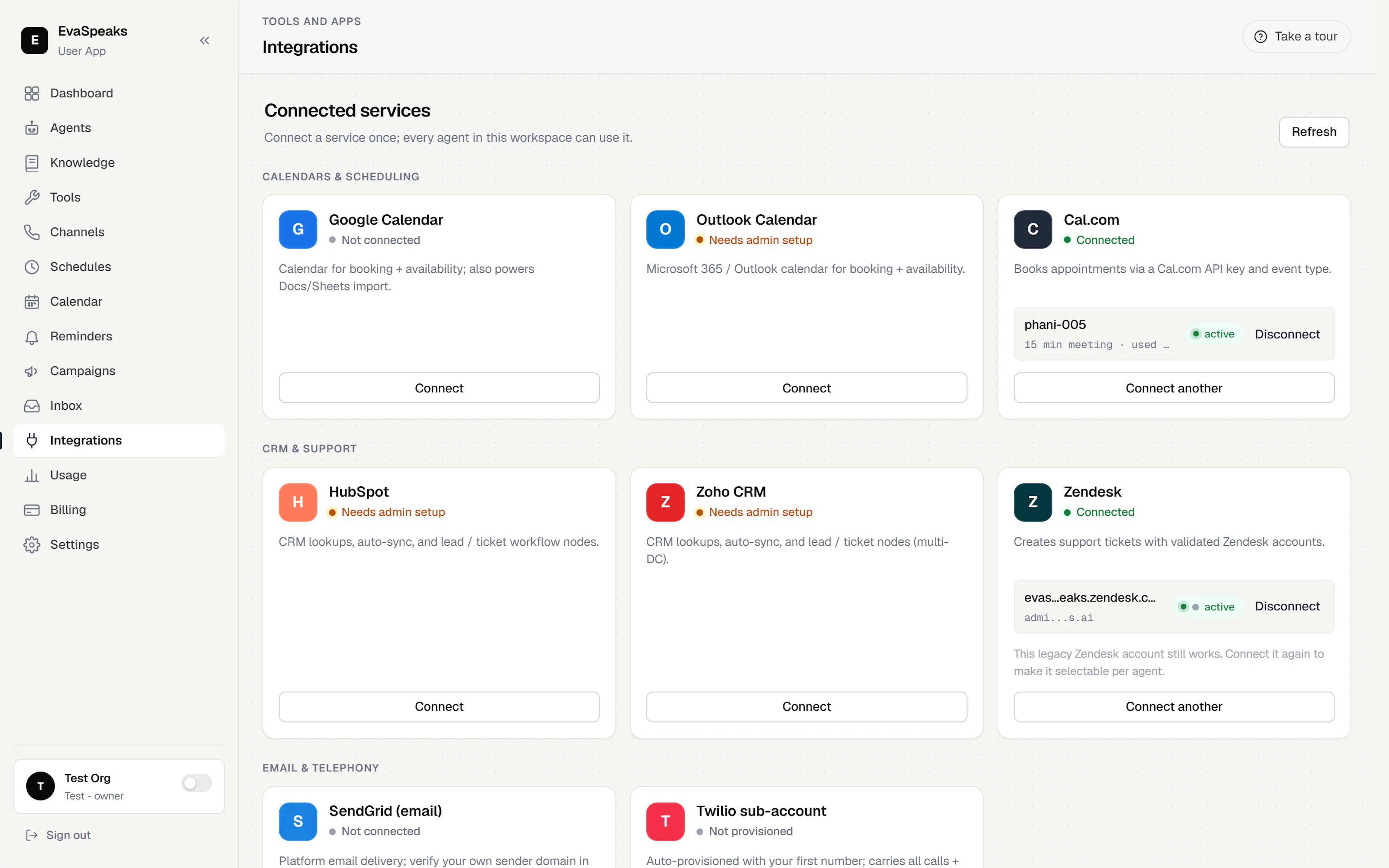
Calendars
Connect a calendar if your agent uses Book appointment or Check availability.
| Provider | How you connect |
|---|---|
| Google Calendar | Connect with Google, then approve access. |
| Outlook | Connect with Microsoft, then approve access. |
| Cal.com | Paste your Cal.com API key. |
After connecting, open the agent's Book appointment skill and choose which calendar to book into. See Set up appointment booking on the Skills & actions page.
CRM & helpdesk
Connect a CRM or helpdesk so the agent can recognize repeat callers, look them up, and open tickets.
| Provider | How you connect |
|---|---|
| HubSpot | Connect, sign in, and approve access. |
| Zoho CRM | Connect, choose your data-center region (US, EU, IN, AU, JP, or CN), then sign in. |
| Zendesk | Enter your Zendesk credentials to let the agent create and update tickets. |
| Custom webhook | No native connector for your system? Point the agent at your own HTTP endpoint. |
Tip — for caller look-up to work, your CRM records should be findable by phone number — that's how the agent matches a repeat caller to an existing contact.
Note — you never paste phone-platform keys here. Number provisioning is handled for you — see Connect a phone number. Individual app pages may gain more options over time.