

Monitor & analytics
Track live activity, read call transcripts, and measure what your agents achieve.
Monitor & analytics
Once your agents are live, three places tell you what's happening and how well it's going: the Dashboard, the Inbox, and per-agent Outcomes.
Dashboard
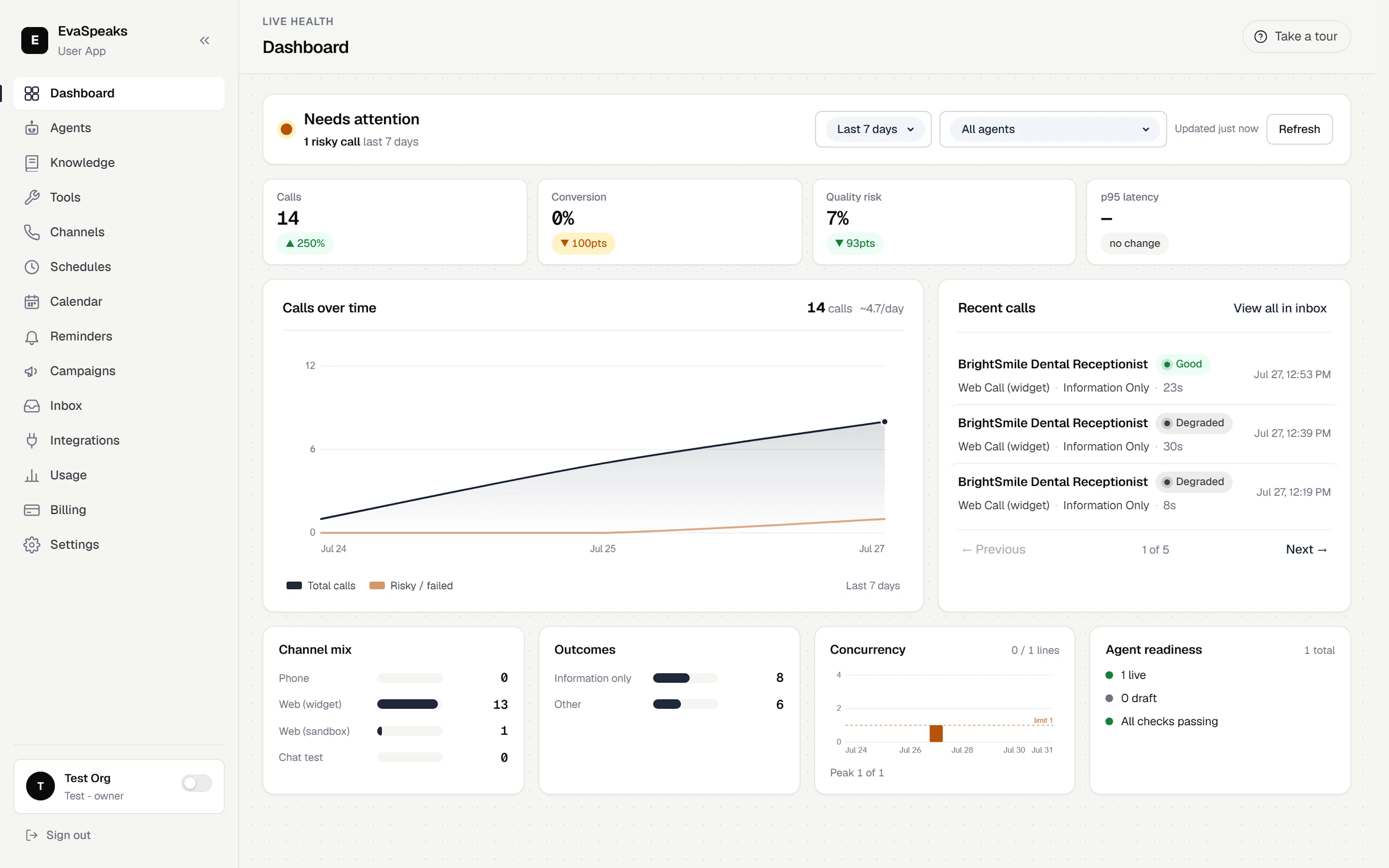
The Dashboard is your at-a-glance "is it working?" view. A status badge at the top calls it plainly — Workspace healthy, Needs attention, or a setup prompt — and the KPI strip shows your headline numbers: Calls, Conversion, Quality risk, and p95 latency, each with a trend against the previous period.
Two filters shape everything on the page:
- A time window with presets — Today, Last 7 days, This week, Last week, This month, Last month, and Custom (a date-range picker).
- A per-agent filter — leave it on All agents for workspace-wide totals, or pick one agent.
Below the KPIs you get a Calls over time chart, a Needs attention list (agents failing pre-flight checks), a Recent calls panel, and mini panels for channel mix, outcomes, concurrency, and agent readiness. Click any recent call to jump straight into it in the Inbox.
Inbox
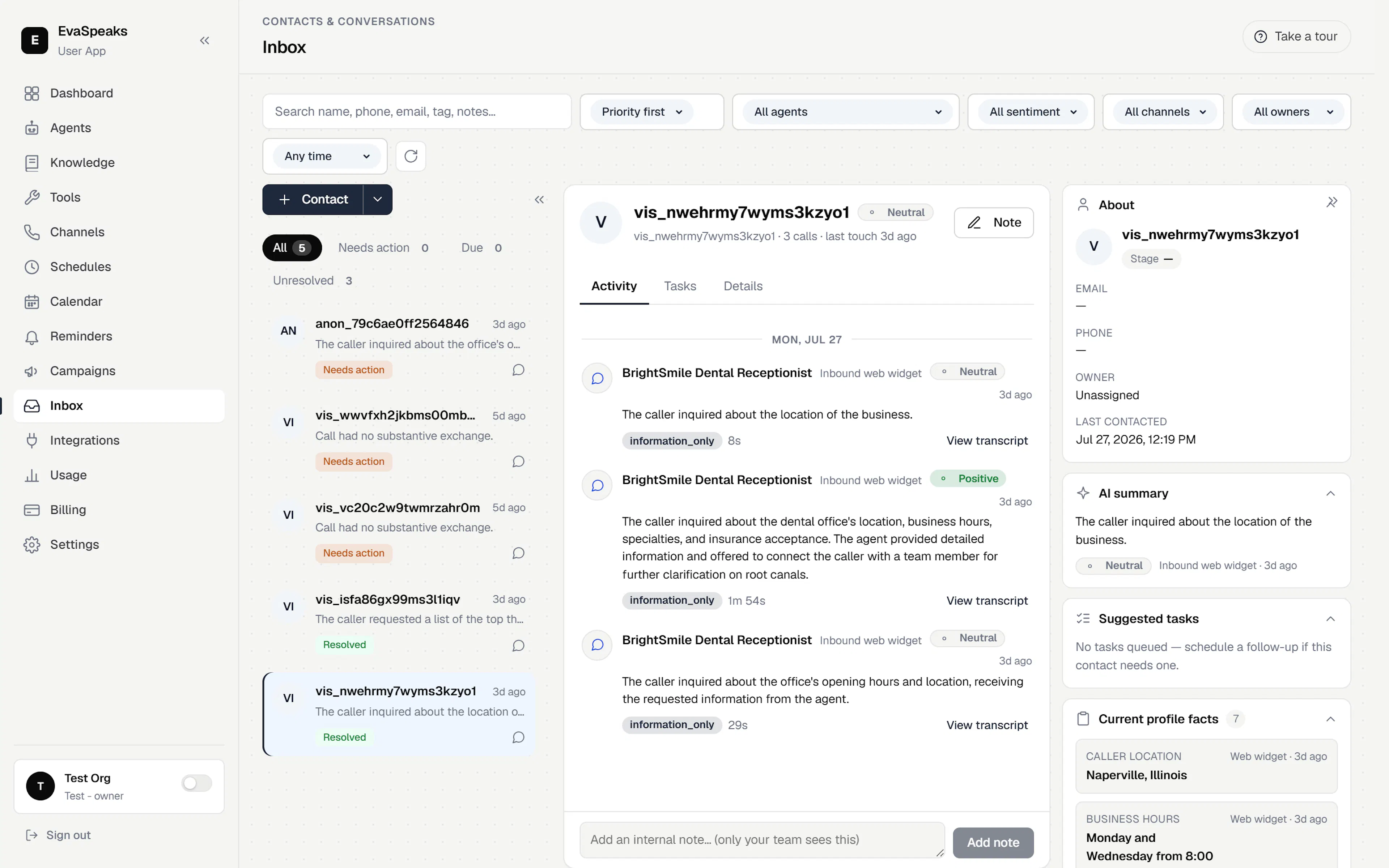
The Inbox holds your contacts and conversations in one workspace: a worklist of contacts on the left, the selected contact in the middle, and a context rail on the right. Search by name, phone, email, tag, or note, and narrow the list by agent, sentiment, channel, owner, or recency.
Open a contact to work through three tabs:
- Activity — the full timeline of calls, chats, SMS, email, and notes. Open any conversation to read the call transcript (the full session detail — summary, captured facts, actions taken, and diagnostics) and play the recording where one was captured.
- Tasks — follow-ups and reminders tied to this contact, which you can complete, cancel, or retry.
- Details — the contact's saved fields and captured facts.
Web contact-form submissions land here too, alongside calls and messages, so every touch from a contact lives in one place.
Outcomes
Each agent has its own Outcomes view — open the agent and switch to the Outcomes tab to see what this agent achieved over a window you choose (Last 7, 30, or 90 days).
The scorecard leads with the numbers that matter: calls analyzed, how many reached a tracked outcome, the top outcome, calls that dropped mid-call, and failed actions. Below that:
- Workflow outcomes and milestones — what calls achieved, and successes along the way.
- Post-call automations — actions fired after the call (email, SMS, webhook, CRM sync), with success and failure counts.
- Call dispositions — how calls ended.
- A drop-off view — where callers hung up, node by node, so you can find the biggest leak.
Click into any of these to see the underlying calls, and use Export CSV on a drill-in table to take the rows with you.
Tip — Usage and cost aren't here — they live on the Billing page. See Plans, usage & billing.